
Home › Blog › 스마트 TV에서 M3U 재생목록 설정하는 방법
스마트 TV에서 M3U 재생목록 설정하는 방법
March 26, 2026
IPTV 제공업체가 M3U 재생목록 URL을 주었는데 어떻게 해야 할지 모르겠다면, 잘 찾아오셨습니다. M3U 재생목록은 IPTV 채널에 접근하는 표준 방법이지만, 스마트 TV에서의 설정이 항상 간단하지는 않습니다 — 특히 이전에 IPTV 플레이어를 사용해 본 적이 없다면. 이 가이드에서는 M3U 재생목록이 무엇인지, 어떻게 작동하는지 설명하고, Easy IP TV를 사용하여 Samsung, LG, Android TV에서의 전체 설정 과정을 안내합니다.
M3U 재생목록이란?
M3U 재생목록은 스트리밍 URL 목록이 포함된 텍스트 파일로, 각 URL은 라이브 TV 채널, 영화 또는 시리즈 에피소드를 가리킵니다. 이 형식은 수십 년 전부터 존재했으며 (원래 Winamp용으로 만들어짐) IPTV의 표준 형식이 되었습니다. 파일에는 일반적으로 채널 이름, 그룹 카테고리 (스포츠, 뉴스, 엔터테인먼트 등), 채널 로고, 프로그램 가이드 데이터를 위한 EPG ID가 포함됩니다. M3U8은 국제 문자를 지원하는 같은 형식의 UTF-8 버전입니다 — 대부분의 현대 IPTV 플레이어는 M3U와 M3U8을 호환하여 지원합니다.
M3U 재생목록 URL을 얻는 방법
M3U 재생목록 URL은 IPTV 제공업체로부터 받습니다 — 직접 만드는 것이 아닙니다. IPTV 서비스에 가입하면 제공업체가 URL (http:// 또는 https://로 시작하는 웹 주소)을 제공하며, 이를 플레이어 앱에 붙여넣습니다. 일부 제공업체는 Xtream Codes를 사용하여 서버 주소, 사용자 이름, 비밀번호를 제공합니다 — 이 경우 구체적으로 "M3U URL" 또는 "M3U 재생목록 링크"를 요청하세요. 대부분의 Xtream Codes 제공업체는 자격 증명으로 M3U URL을 생성할 수 있습니다. 중요: Easy IP TV는 IPTV 콘텐츠나 채널을 제공하지 않습니다. IPTV 제공업체와의 별도 구독이 필요합니다.
시작 전 준비물
M3U 재생목록을 설정하기 전에 다음을 준비하세요: 1) 스마트 TV — Samsung (2018+), LG (2018+) 또는 Android TV / Google TV 기기. 2) IPTV 제공업체의 M3U 재생목록 URL. 3) Easy IP TV 웹사이트에 접속할 스마트폰, 태블릿 또는 컴퓨터. 4) 안정적인 인터넷 연결 (HD 스트리밍에 최소 10 Mbps, 유선 Ethernet 권장). 그게 전부입니다 — 전체 설정은 2분도 걸리지 않습니다.
Easy IP TV로 단계별 설정
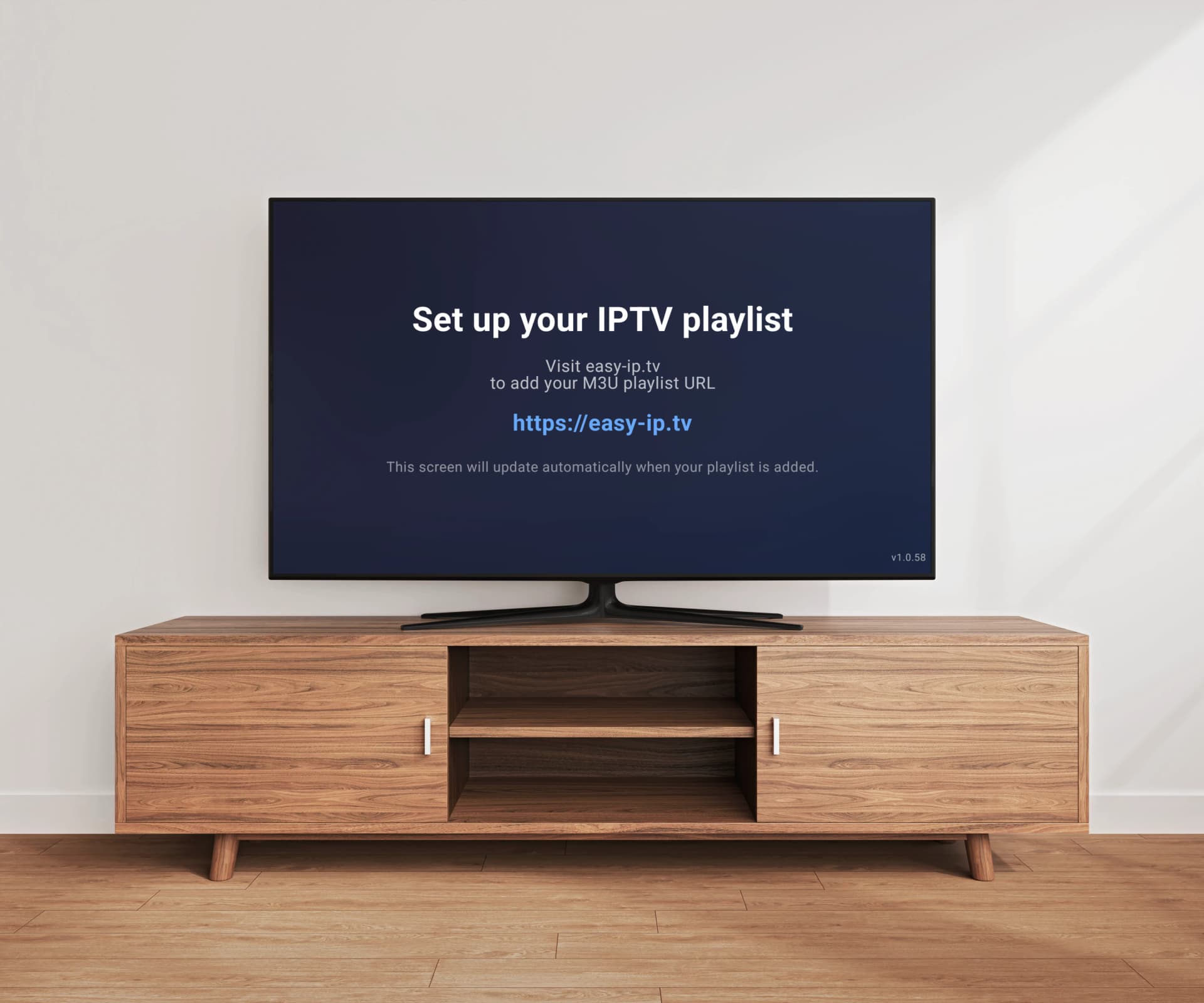
설정 과정은 모든 TV 플랫폼에서 동일합니다: 1단계: TV의 앱 스토어에서 Easy IP TV를 설치합니다 (Samsung Apps, LG Content Store 또는 Google Play Store). 2단계: TV에서 앱을 엽니다. 화면에 6자리 연결 코드와 QR 코드가 나타납니다. 3단계: 스마트폰이나 컴퓨터에서 easy-ip.tv로 이동합니다. 4단계: 로그인하고 (또는 무료 계정 생성) 6자리 코드를 입력하거나 스마트폰 카메라로 QR 코드를 스캔합니다. 5단계: 대시보드에서 M3U 재생목록 URL을 붙여넣고 저장을 클릭합니다. 6단계: TV가 자동으로 재생목록을 로드합니다. 채널이 로고와 EPG 데이터와 함께 그룹별로 정리되어 나타납니다 (재생목록에 포함된 경우).
Samsung Tizen TV에서 설정
Samsung TV에서: 리모컨의 Home 버튼을 누르세요. 앱 (또는 Samsung Apps)으로 이동하세요. 화면 키보드로 "Easy IP TV"를 검색하세요. 설치를 선택하고 다운로드가 완료될 때까지 기다리세요. Easy IP TV를 열면 — 6자리 코드가 즉시 나타납니다. 스마트폰에서 easy-ip.tv로 이동하여 로그인하고 코드를 입력하세요. 대시보드에서 M3U URL을 붙여넣으세요. 채널이 곧 Samsung TV에 나타납니다. Easy IP TV는 서버에서 재생목록을 처리하므로, 수천 개의 채널이 있는 대형 재생목록도 Samsung TV를 느리게 하지 않고 빠르게 로드됩니다.
LG webOS TV에서 설정
LG TV에서: LG 리모컨 (또는 Magic Remote)의 Home 버튼을 누르세요. LG Content Store를 여세요. "Easy IP TV"를 검색하고 설치하세요. 앱을 열면 — 연결 코드와 QR 코드가 화면에 나타납니다. 스마트폰에서 easy-ip.tv를 방문하여 로그인하고 코드를 입력하세요. 대시보드에서 M3U 재생목록 URL을 추가하세요. 채널이 TV에 자동으로 로드됩니다. LG Magic Remote의 포인터 탐색이 앱 전체에서 작동합니다 — 채널을 가리키고 클릭하고, 목록을 스크롤하고, EPG를 자연스럽게 탐색하세요.
Android TV / Google TV에서 설정
Android TV 또는 Google TV 기기에서 (Sony, TCL, NVIDIA Shield, Chromecast, Xiaomi 등): 홈 화면에서 Google Play Store를 여세요. "Easy IP TV"를 검색하고 설치하세요. 앱을 열고 화면의 6자리 코드를 확인하세요. 스마트폰에서 easy-ip.tv로 이동하여 로그인하고 코드를 입력하세요. 대시보드에서 M3U URL을 추가하고 저장하세요. 채널이 TV에 나타납니다. Android 7.0 이상을 실행하는 모든 Android TV 기기에서 작동합니다.
일반적인 M3U 재생목록 문제 및 해결 방법
재생목록이 로드되지 않음: M3U URL을 다시 확인하세요 — http:// 또는 https://로 시작하는지, 추가 공백이 없는지 확인하세요. 웹 브라우저에서 URL을 열어 작동하는지 확인해 보세요. 채널이 나타나지 않음: 재생목록이 Xtream Codes 형식을 사용한다면 제공업체에 URL의 M3U 버전을 요청하세요. EPG 데이터 없음: 모든 재생목록이 EPG 정보를 포함하는 것은 아닙니다. 제공업체에 별도의 EPG/XMLTV URL을 요청하고 Easy IP TV 대시보드에서 추가하세요. 채널 로고 누락: 로고는 IPTV 제공업체가 재생목록에 로고 URL을 포함하는지에 따라 다릅니다. 재생목록 만료: 일부 제공업체는 만료되는 임시 M3U URL을 발급합니다. 채널이 작동하지 않으면 제공업체에 업데이트된 URL을 확인하세요.
Easy IP TV가 M3U를 다르게 처리하는 이유
SmartOne IPTV, IBO Player, TiviMate, Smart IPTV와 같은 대부분의 IPTV 플레이어는 TV에서 직접 M3U 재생목록을 다운로드하고 파싱합니다. 작은 재생목록 (수백 개 채널)에서는 잘 작동합니다. 하지만 5,000에서 50,000개 이상의 채널이 있는 대형 재생목록은 스마트 TV 하드웨어를 압도하여 느린 로딩, 인터페이스 지연, 심지어 멈춤을 유발할 수 있습니다. Easy IP TV는 다른 접근 방식을 취합니다: M3U URL이 Easy IP TV 서버에서 처리됩니다. 서버가 재생목록을 다운로드하고, 모든 채널을 파싱하고, 그룹과 로고를 추출하고, EPG 데이터를 처리한 후, TV에 최적화된 결과만 전송합니다. 이는 재생목록 크기에 관계없이 일관되고 빠른 성능을 의미합니다.
FAQ
M3U와 M3U8의 차이점은 무엇인가요?
M3U와 M3U8은 같은 재생목록 형식입니다. M3U8은 아랍어, 중국어, 키릴 문자 등 국제 문자를 지원하는 UTF-8 인코딩 버전입니다. Easy IP TV는 두 형식 모두 지원합니다 — 어느 것이든 사용하실 수 있습니다.
URL 대신 로컬 M3U 파일을 사용할 수 있나요?
Easy IP TV는 재생목록이 서버에서 처리되므로 URL (http:// 또는 https://)이 필요합니다. 로컬 M3U 파일만 있다면 IPTV 제공업체에 URL 버전을 요청하세요 — 대부분의 제공업체가 두 가지를 모두 제공합니다.
M3U 재생목록을 얼마나 자주 새로고침해야 하나요?
IPTV 제공업체는 주기적으로 채널 목록을 업데이트합니다. Easy IP TV Pro 플랜에서는 재생목록이 자동으로 새로고침되어 항상 최신 채널을 유지합니다. Basic 플랜에서는 필요할 때 대시보드에서 수동으로 새로고침할 수 있습니다.
M3U URL에 사용자 이름과 비밀번호가 있는데 — 안전한가요?
M3U URL은 Easy IP TV 서버에 안전하게 저장되며 암호화된 연결 (HTTPS)을 통해 전송됩니다. 재생목록 URL을 제3자와 공유하지 않습니다. 하지만 M3U URL을 비밀번호처럼 취급하세요 — 공개적으로 공유하지 마세요.
한 TV에서 여러 M3U 재생목록을 사용할 수 있나요?
Easy IP TV는 현재 계정당 하나의 M3U 재생목록을 지원합니다. 여러 제공업체의 채널을 결합해야 한다면, 일부 IPTV 서비스에서 병합된 재생목록을 제공합니다.
관련 기사
M3U vs Xtream Codes API: 어떤 형식이 필요한가요?
IPTV 서비스에서 M3U와 Xtream Codes API 중 무엇을 사용할지 모르시나요? 이 가이드는 두 형식을 분석하고 설정에 적합한 것을 선택하는 데 도움을 줍니다.
IPTV EPG 가이드: 설정, XMLTV 및 문제 해결
IPTV용 전자 프로그램 가이드에 대한 모든 것. XMLTV 형식 이해부터 일반적인 EPG 문제 해결까지, 설정, 문제 해결, 서버 측 EPG 처리의 장점을 다룹니다.
스마트 TV에서 IPTV 버퍼링 해결하는 방법
Samsung, LG, Android TV에서의 IPTV 버퍼링과 멈춤을 해결하는 실용적이고 입증된 솔루션 — 빠른 수정부터 고급 문제 해결까지.
IPTV란? 완벽한 초보자 가이드 (2026)
IPTV는 수백만 명의 TV 시청 방식을 변화시켰지만, 기술과 용어가 초보자에게는 혼란스러울 수 있습니다. 이 포괄적인 가이드는 IPTV에 대해 알아야 할 모든 것을 쉬운 말로 설명합니다.
M3U 재생목록을 설정할 준비가 되셨나요?
Samsung, LG 또는 Android TV에 Easy IP TV를 설치하고 2분 안에 시청을 시작하세요. 24시간 무료 체험 — 신용카드가 필요하지 않습니다.
TV 연결하기