
Home › Blog › نحوه رفع بافرینگ IPTV روی تلویزیون هوشمند
نحوه رفع بافرینگ IPTV روی تلویزیون هوشمند
March 26, 2026
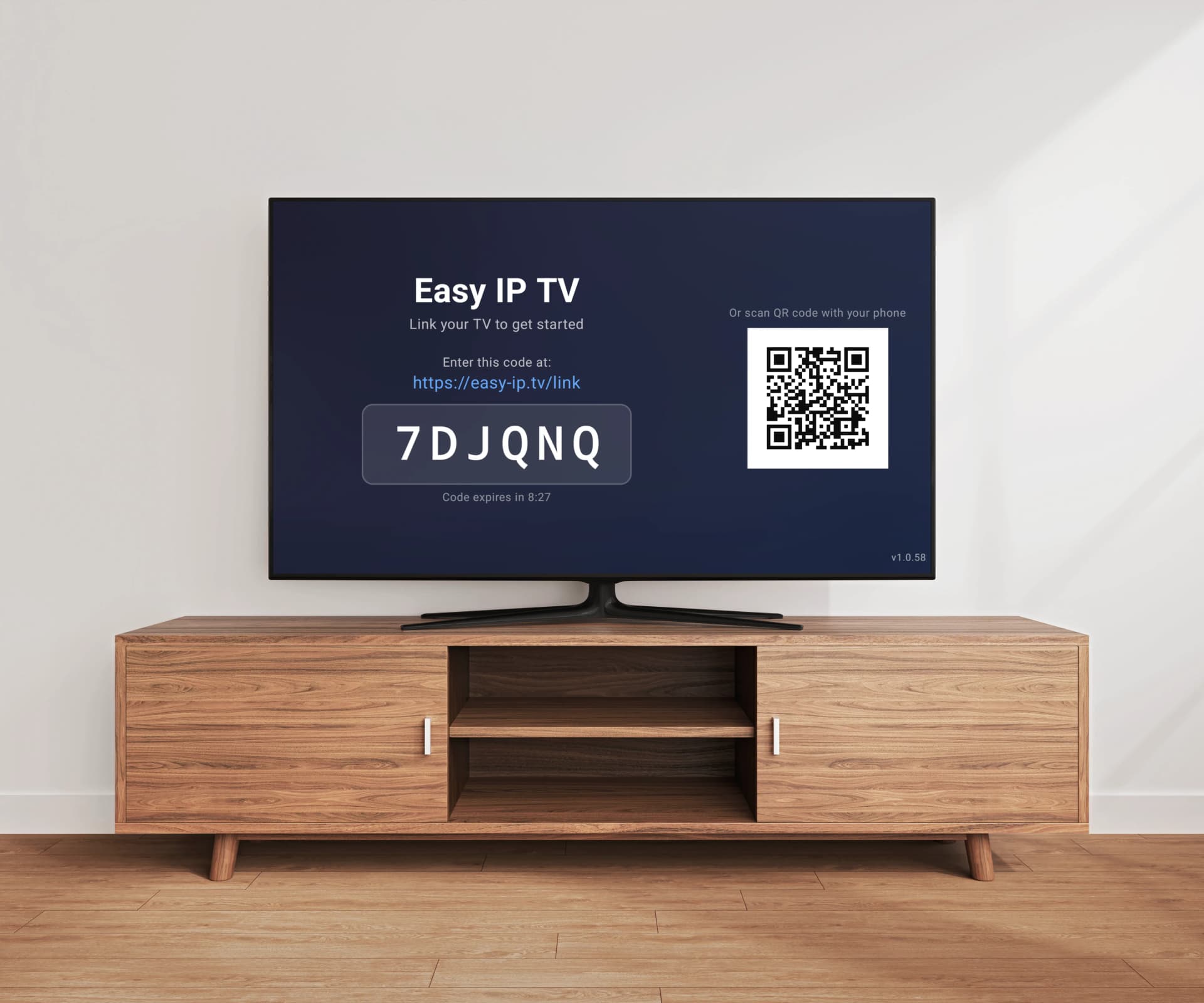
بافرینگ — آن دایره چرخان که هر چند ثانیه پخش شما را قطع میکند — ناامیدکنندهترین بخش تماشای IPTV است. خبر خوب: بیشتر مشکلات بافرینگ راهحلهای سادهای دارند. چه از Easy IP TV، TiviMate، SmartOne IPTV، IBO Player یا هر پخشکننده IPTV دیگری استفاده کنید، علل بافرینگ معمولاً یکسان هستند. در این راهنما، هفت راهحل اثبات شده را پوشش میدهیم که تجربه پخش IPTV شما را روی Samsung، LG و Android TV به طور قابل توجهی بهبود میبخشد.
چرا IPTV بافر میکند؟
بافرینگ IPTV زمانی رخ میدهد که تلویزیون شما نمیتواند دادههای پخش را به اندازه کافی سریع دریافت کند تا ویدیو را روان پخش کند. پخش متوقف میشود در حالی که منتظر رسیدن دادههای بیشتر است. دلایل ممکن: اتصال اینترنت کند یا ناپایدار، تداخل Wi-Fi، محدودسازی ترافیک پخش توسط ISP، سرورهای بارگذاری شده ارائهدهنده IPTV، تأخیر در حل DNS، تعداد زیاد دستگاهها در اشتراک پهنای باند، یا خود تلویزیون که با اپلیکیشنهای پسزمینه بارگذاری شده.
راهحل ۱: به Ethernet سیمی سوئیچ کنید
این مؤثرترین راهحل برای بافرینگ IPTV است. Wi-Fi ممکن است راحت باشد، اما تأخیر، از دست رفتن بستهها و نوسانات پهنای باند ایجاد میکند که برای پخش ویدیوی زنده مخرب هستند. اتصال Ethernet سیمی پهنای باند ثابت و بدون وقفه فراهم میکند. بیشتر Samsung، LG و Android TV پورت Ethernet در پشت دارند. کافی است کابلی از روتر به تلویزیون وصل کنید. اگر روتر از تلویزیون دور است، آداپتور پاورلاین را در نظر بگیرید که از سیمکشی برق خانه برای گسترش شبکه استفاده میکند.
راهحل ۲: سرورهای DNS خود را تغییر دهید
وقتی کانال عوض میکنید، تلویزیون باید آدرس IP سرور پخش را از طریق DNS جستجو کند. حل DNS کند باعث تأخیر قبل از شروع پخش میشود. به سرورهای DNS عمومی سریعتر تغییر دهید: Google DNS (8.8.8.8، 8.8.4.4) یا Cloudflare DNS (1.1.1.1، 1.0.0.1). میتوانید DNS را در تنظیمات شبکه تلویزیون یا در تنظیمات روتر تغییر دهید تا روی همه دستگاهها اعمال شود.
راهحل ۳: سرعت اینترنت خود را تست کنید
کیفیتهای مختلف پخش به سرعتهای متفاوت نیاز دارند. SD (480p) حداقل ۵ مگابیت بر ثانیه نیاز دارد. HD (720p) ۱۰ مگابیت بر ثانیه. Full HD (1080p) ۱۵ مگابیت بر ثانیه. 4K Ultra HD ۲۵–۳۵ مگابیت بر ثانیه. اینها نیازمندیهای هر پخش هستند — اگر چندین دستگاه همزمان پخش میکنند، آنها را جمع کنید.
راهحل ۴: اپلیکیشنهای پسزمینه تلویزیون را ببندید
تلویزیونهای هوشمند RAM و قدرت پردازش محدودی دارند. هر اپلیکیشن در حال اجرا در پسزمینه منابعی مصرف میکند که پخشکننده IPTV برای پخش روان ویدیو نیاز دارد. روی Samsung TV: دکمه برگشت را نگه دارید، سپس تمام اپلیکیشنها را ببندید. روی LG TV: دکمه Home را دو بار فشار دهید تا اپلیکیشنهای اخیر را ببینید، سپس آنها را ببندید. روی Android TV: به تنظیمات > اپلیکیشنها > مشاهده همه اپلیکیشنها بروید و اپلیکیشنهایی که استفاده نمیکنید را متوقف کنید.
راهحل ۵: بررسی کنید آیا ISP شما محدودسازی میکند
برخی ارائهدهندگان اینترنت عمداً ترافیک پخش را کند میکنند. نشانههای محدودسازی ISP: تستهای سرعت نتایج خوبی نشان میدهند اما پخشهای IPTV هنوز بافر میکنند؛ بافرینگ در ساعات اوج بدتر است؛ فعالیتهای غیر پخش خوب کار میکنند. برای تست: VPN استفاده کنید. اگر پخشهای IPTV با VPN فعال روان شدند، احتمالاً ISP شما ترافیک پخش را محدود میکند.
راهحل ۶: ارائهدهنده IPTV خود را ارزیابی کنید
گاهی مشکل از سمت شما نیست — سرورهای ارائهدهنده IPTV ممکن است بارگذاری شده یا از نظر جغرافیایی دور باشند. نشانههای مشکل ارائهدهنده: کانالهای خاص بافر میکنند در حالی که بقیه خوب پخش میشوند؛ بافرینگ بدون توجه به کیفیت اتصال شما ثابت است. سعی کنید در ساعات غیر اوج تماشا کنید. اگر مشکل ادامه دارد، با ارائهدهنده IPTV خود تماس بگیرید یا تست ارائهدهنده دیگری را در نظر بگیرید.
راهحل ۷: از پخشکننده با پردازش سمت سرور استفاده کنید
بسیاری از پخشکنندههای IPTV — از جمله TiviMate، SmartOne IPTV، IBO Player و Smart IPTV — لیست پخش M3U شما را مستقیماً روی تلویزیون پردازش میکنند. با لیستهای بزرگ (۵,۰۰۰+ کانال) این باعث بارگذاری کند، کندی رابط و گاهی انجماد هنگام جابجایی بین گروههای کانال میشود. Easy IP TV با پردازش سمت سرور لیست پخش این مشکل را حذف میکند. لیست پخش M3U شما روی سرورهای Easy IP TV پردازش میشود و تلویزیون فقط دادههای بهینهشده کانالها را دریافت میکند. نتیجه: بارگذاری سریع کانال و ناوبری روان بدون توجه به اندازه لیست پخش.
نکات مخصوص پلتفرم Samsung TV
تلویزیونهای Samsung Tizen از ۲۰۱۸ تا ۲۰۲۰ نسبت به مدلهای جدیدتر RAM کمتری دارند. نکات: ویژگیهای پخش خودکار Smart Hub Samsung را غیرفعال کنید. کش تلویزیون را با راهاندازی مجدد پاک کنید (۳۰ ثانیه از برق بکشید). مطمئن شوید فریمور تلویزیون بهروز است. اگر از Wi-Fi استفاده میکنید، مطمئن شوید تلویزیون روی باند 5 GHz است.
نکات مخصوص پلتفرم LG TV
تلویزیونهای LG webOS معمولاً بهینهسازی خوبی دارند اما مدلهای قدیمیتر هنوز ممکن است مشکل داشته باشند. نکات: تلویزیون را مرتباً راهاندازی مجدد کنید. اگر مشکلات ادامه دارد کش اپلیکیشن را با نگه داشتن آیکون اپلیکیشن و انتخاب حذف/نصب مجدد پاک کنید. در صورت امکان از Ethernet متصل شوید. فریمور تلویزیون را از طریق تنظیمات > تمام تنظیمات > عمومی > درباره این تلویزیون > بررسی بروزرسانیها بهروز کنید.
نکات مخصوص پلتفرم Android TV
دستگاههای Android TV از نظر عملکرد بسیار متفاوت هستند. نکات: روی دستگاههای بودجه، تمام اپلیکیشنهای پسزمینه را ببندید و اپلیکیشنهای نصب شده را حداقل نگه دارید. بروزرسانی خودکار اپلیکیشنها را در حین پخش غیرفعال کنید. برای Chromecast with Google TV: فضای ذخیرهسازی را زیر ۸۰٪ نگه دارید. روی NVIDIA Shield: ارتقای هوشمند تصویر را فعال کنید برای کیفیت بهتر بدون پهنای باند اضافی. بررسی کنید کابل HDMI شما از رزولوشنی که پخش میکنید پشتیبانی کند.
FAQ
چرا IPTV من فقط شبها بافر میکند؟
ساعات شب زمان اوج تماشا هستند. هم شبکه ISP شما و هم سرورهای ارائهدهنده IPTV ترافیک بیشتری دارند. راهحلها: به Ethernet سیمی سوئیچ کنید، VPN امتحان کنید تا محدودسازی ISP را دور بزنید، یا از ارائهدهنده IPTV بپرسید آیا سرورهای جایگزین دارند.
آیا اپلیکیشن پخشکننده IPTV بر بافرینگ تأثیر میگذارد؟
اپلیکیشن پخشکننده مستقیماً بر بافرینگ پخش ویدیو تأثیر نمیگذارد — بافرینگ ناشی از شرایط شبکه و منبع پخش است. با این حال، پخشکننده بر سرعت بارگذاری و پاسخگویی رابط تأثیر میگذارد. Easy IP TV لیستها را سمت سرور پردازش میکند، بنابراین مرور و تغییر کانال سریعتر احساس میشود.
آیا باید از Wi-Fi 2.4 GHz یا 5 GHz برای IPTV استفاده کنم؟
اگر تلویزیون و روتر شما پشتیبانی میکنند همیشه از Wi-Fi 5 GHz استفاده کنید. باند 5 GHz سرعت بالاتر و تداخل بسیار کمتری ارائه میدهد. اگر تلویزیون از روتر دور است، اتصال Ethernet سیمی بسیار بهتر از هر گزینه Wi-Fi است.
آیا VPN بافرینگ IPTV را رفع میکند؟
فقط اگر ISP شما ترافیک پخش را محدود میکند. VPN ترافیک شما را رمزنگاری میکند تا ISP نتواند پخشهای IPTV را شناسایی و کند کند. اگر بافرینگ ناشی از اینترنت کند یا سرورهای بارگذاری شده ارائهدهنده است، VPN کمکی نمیکند.
برای IPTV چقدر سرعت اینترنت نیاز دارم؟
حداقل سرعتهای توصیه شده: ۵ مگابیت بر ثانیه برای SD، ۱۰ مگابیت بر ثانیه برای HD، ۱۵ مگابیت بر ثانیه برای Full HD، ۲۵–۳۵ مگابیت بر ثانیه برای 4K. اینها به ازای هر پخش هستند. حداقل ۱۵ مگابیت بر ثانیه برای تجربه راحت HD با کمی حاشیه امن توصیه میکنیم.
مقالات مرتبط
نحوه راهاندازی لیست پخش M3U روی تلویزیون هوشمند
راهنمای کامل مبتدیان برای لیستهای پخش M3U: چه هستند، از کجا بگیرید و چگونه گام به گام روی Samsung، LG یا Android TV راهاندازی کنید.
بهترین پخشکننده IPTV برای Smart TV 2026 — کدام برای تلویزیون شما مناسب است؟
بهترین پخشکننده IPTV برای Smart TV در سال 2026 کدام است؟ بهترین اپلیکیشنها برای Samsung، LG و Android TV را مقایسه میکنیم — و نشان میدهیم کدام اپ IPTV با تلویزیون شما تطابق بهتری دارد.
IPTV چیست؟ راهنمای کامل مبتدیان (2026)
IPTV نحوه تماشای تلویزیون میلیونها نفر را متحول کرده است. این راهنمای جامع همه چیز را درباره IPTV به زبان ساده توضیح میدهد — از نحوه کار فناوری تا نحوه راهاندازی روی تلویزیون شما.
راهنمای EPG برای IPTV: راهاندازی، XMLTV و عیبیابی
همه چیزی که درباره راهنماهای برنامه الکترونیکی برای IPTV باید بدانید. از فرمت XMLTV تا رفع مشکلات رایج EPG.
هنوز بافرینگ دارید؟
Easy IP TV لیستها را سمت سرور پردازش میکند برای بارگذاری سریعتر کانال و ناوبری روانتر. آزمایش رایگان ۲۴ ساعته — بدون نیاز به کارت اعتباری.
Easy IP TV را امتحان کنید